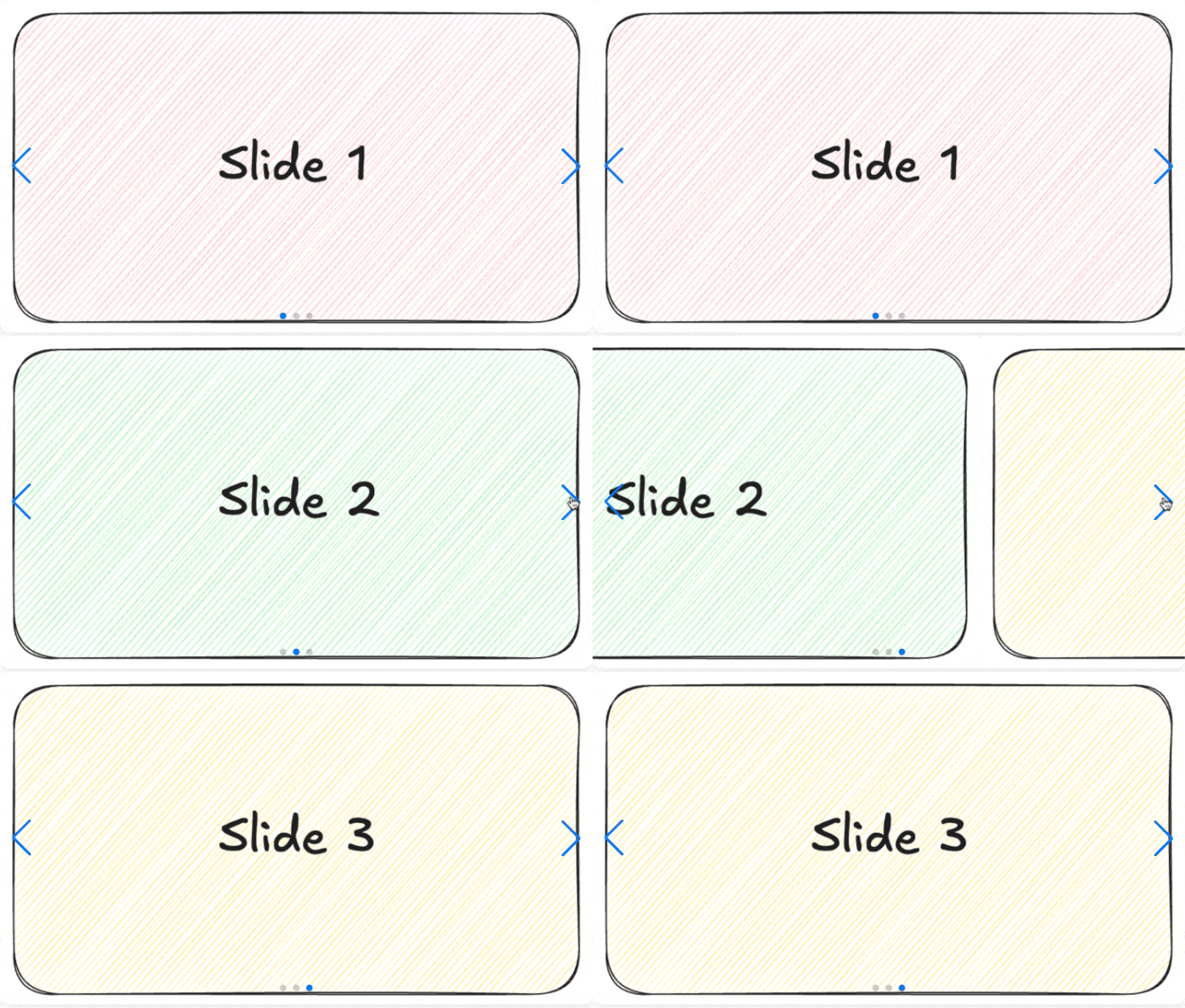
I’d like to add an image carousel / slider to my article. After some research, I found three common approaches:
- Hardcoding HTML directly into Markdown (tedious and hard to maintain).
- Using Hugo Modules (powerful but sometimes overkill for a simple slider).
- Creating a Custom Shortcode (the perfect balance of flexibility and performance).
In this post, I’ll show you how I built a robust, reusable Swiper component using the Shortcode approach. This method keeps your Markdown clean while ensuring your site stays fast.
🏗️ The Architecture
We will split the implementation into three clean parts:
- The Partial: A helper for asset management (Styles & Scripts).
- The Hook: Integrating the helper into your site’s .
- The Shortcode: The user-friendly Markdown interface.
1. The Asset Helper (partials/helpers/swiper.html)
Instead of cluttering your global CSS, we encapsulate everything in a dedicated helper. Note the use of defer and window.onload to ensure a smooth, non-blocking experience.
Note: Check the latest Swiper Releases to ensure you’re using the most stable version.
<!-- 1. Styles: Placed in Head to ensure proper layout before images load -->
<link
  rel="stylesheet"
  href="https://cdn.jsdelivr.net/npm/swiper@12/swiper-bundle.min.css"
/>
<style>
  .mySwiper {
    margin: 2em 0;
    width: 100%;
    aspect-ratio: 16 / 9;
    background: #eee;
    overflow: hidden;
    border-radius: 12px;
    box-shadow: 0 4px 12px rgba(0, 0, 0, 0.1);
  }
  .swiper-slide img {
    margin: 0;
    width: 100%;
    height: 100%;
    object-fit: contain;
    display: block;
  }
</style>

<!-- 2. Scripts: Added 'defer' to prevent blocking HTML rendering -->
<script
  defer
  src="https://cdn.jsdelivr.net/npm/swiper@12/swiper-bundle.min.js"
></script>

<!-- 3. Init Script -->
<script>
  document.addEventListener('DOMContentLoaded', function () {
    new Swiper('.mySwiper', {
      direction: 'horizontal',
      autoHeight: true,
      loop: true,

      autoplay: {
        delay: 3000,
        disableOnInteraction: false,
      },

      // If we need pagination
      pagination: {
        el: '.swiper-pagination',
        clickable: true,
      },

      // Navigation arrows
      navigation: {
        nextEl: '.swiper-button-next',
        prevEl: '.swiper-button-prev',
      },
    })
  })
</script>
2. The Hook (layouts/partials/extend_head.html)
In PaperMod, you can inject assets via extend_head.html. Contents of extend_head.html will be added to <head> of the page. If you use another theme, check its Documentation on Partials.
We don’t want to load Swiper’s 100KB+ assets on every page. We use Hugo’s .HasShortcode function to keep our site lean.
{{ if .HasShortcode "swiper" }}
  {{ partial "helpers/swiper.html" . }}
{{ end }}
3. The Shortcode (layouts/shortcodes/swiper.html)
With shortcodes, you can easily use Swiper in any page. We use {{ .Inner }} so you can pass custom HTML (like <img> tags) directly from your Markdown.
<!-- Slider main container -->
<div class="swiper mySwiper">
  <!-- Additional required wrapper -->
  <div class="swiper-wrapper">
    <!-- Slides -->
    {{ .Inner }}
  </div>
  <!-- If we need pagination -->
  <div class="swiper-pagination"></div>
  <!-- If we need navigation buttons -->
  <div class="swiper-button-prev"></div>
  <div class="swiper-button-next"></div>
</div>
✍️ Usage in Markdown
Now, adding a slider is as simple as this:
{{< swiper >}}

  <div class="swiper-slide"><img src="images/slide1.png" alt="Slide 1"></div>
  <div class="swiper-slide"><img src="images/slide2.png" alt="Slide 2"></div>
  <div class="swiper-slide"><img src="images/slide3.png" alt="Slide 3"></div>

{{< /swiper >}}
Or use lazy loading for better initial performance:
{{< swiper >}}

  <div class="swiper-slide">
    <img src="images/slide1.png" loading="lazy" alt="Slide 1">
    <div class="swiper-lazy-preloader"></div>
  </div>
  <div class="swiper-slide">
    <img src="images/slide2.png" loading="lazy" alt="Slide 2">
    <div class="swiper-lazy-preloader"></div>
  </div>
  <div class="swiper-slide">
    <img src="images/slide3.png" loading="lazy" alt="Slide 3">
    <div class="swiper-lazy-preloader"></div>
  </div>

{{< /swiper >}}
✨ Why this works:
- Smart Loading: Assets only appear on pages that actually contain a slider.
- SEO Friendly: Uses native
loading="lazy"for high Core Web Vitals scores.
Pro Tip: If you use Hugo Extended, you can use Image Processing inside the shortcode to automatically generate WebP versions of your slides!
Have fun!